The Interface
binmate ships with an interactive Terminal User Interface (TUI) built with Bubble Tea. Launch it by running binmate with no arguments:
binmateThe interface uses a warm orange theme and a set of icons to help you navigate quickly. The main views are organised into tabs:
- 📦 Binaries - browse and manage configured binaries
- ⚙️ Config - view the current configuration
- ❓ Help - keyboard shortcuts and tips
Demo
A short demo recording is available on YouTube: binmate demo.
The recording walks through the following workflow:
- Check the current version of the
ghCLI (initially not installed). - Launch
binmate. - Install a non-latest version.
- Verify the installed version.
- Re-launch
binmate. - Update to the latest version.
- Verify the latest version is installed.
Views
Binary List View
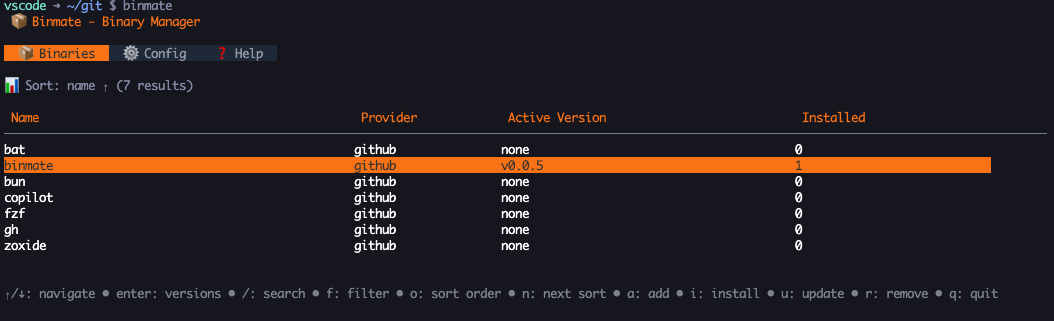
Provides an overview of configured binaries with actions for:
- view installed versions
- search
- filter
- sort
- add new binary
- install new version
- update selected binary
- remove selected binary
Binary List View with Search
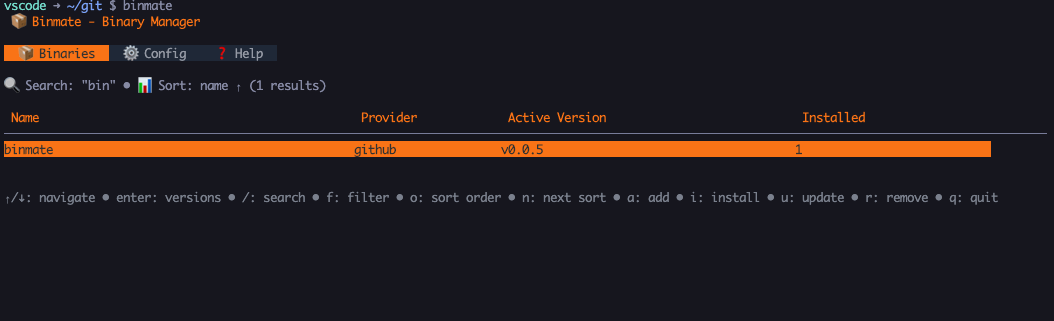
Entering a search query performs an in-memory search of the displayed binaries.
Binary List View Filter Panel
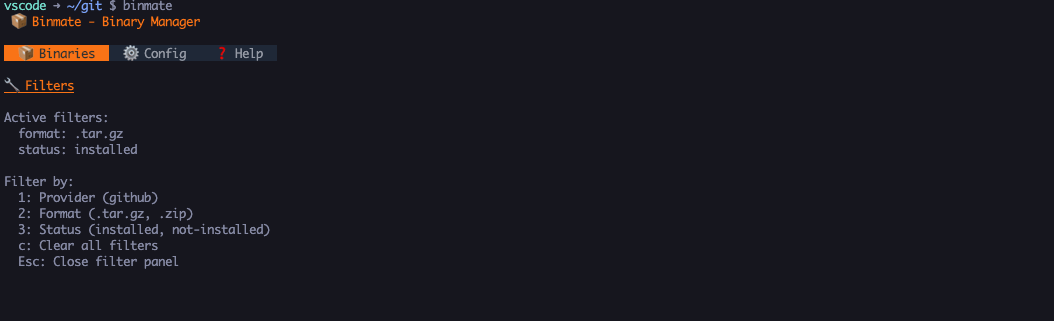
The filter panel provides the following options:
- provider (currently only GitHub is supported)
- format
- status (installed / not installed)
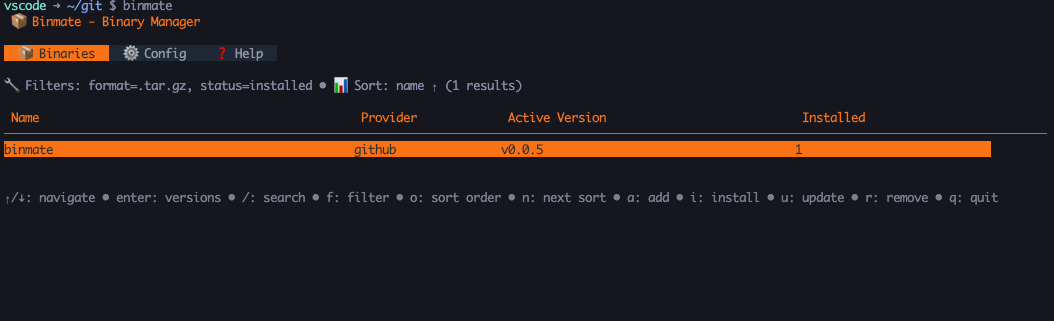
Binary List View with Filter
Binary Add View
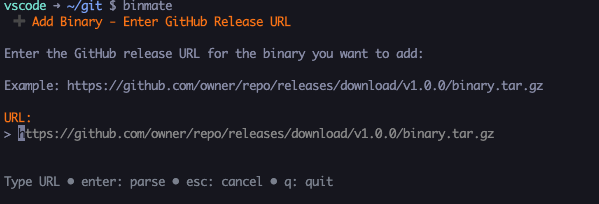
Provides an input for entering a GitHub release URL. The entered URL is parsed and the required metadata extracted, then redirects to the Binary Add Configuration View to allow refinement of the extracted metadata.
Binary Add Configuration View
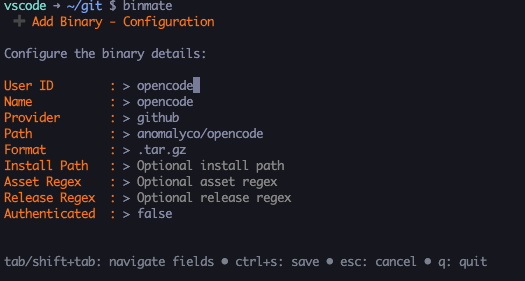
Displays metadata extracted from the entered URL with the option to override any of the identified values.
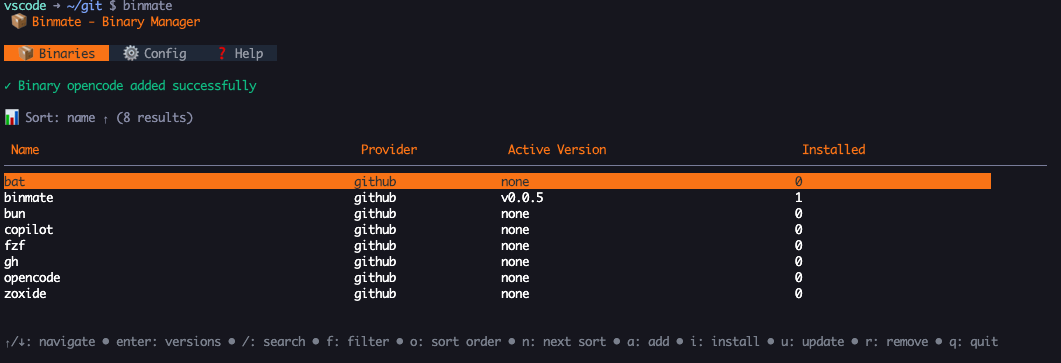
A success prompt is shown following a save.
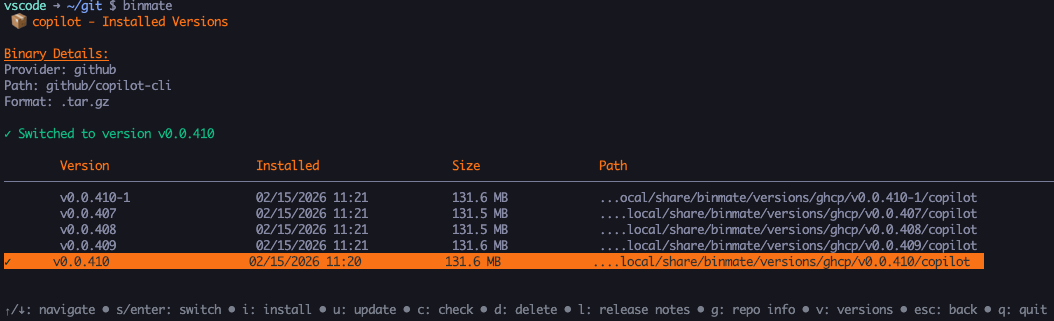
Binary Installed Versions View
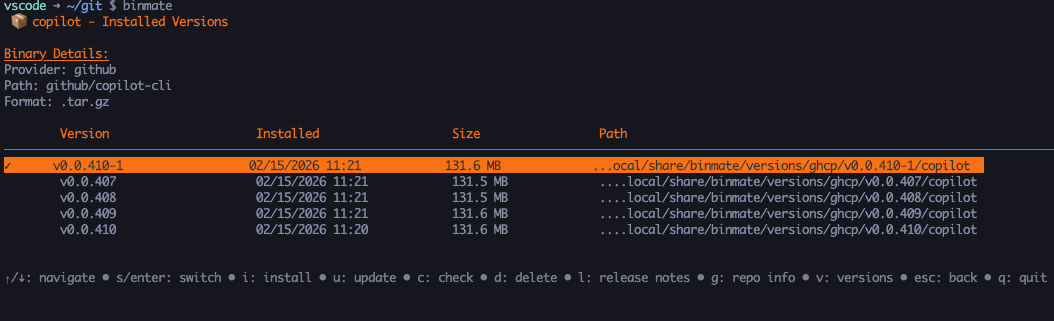
Provides an overview of the selected binary's details along with a summary of the installed versions. Active versions are marked with a ✓.
Actions are available for the following:
- switch active version
- install new version
- check for version updates
- update version
- delete version
- view version release notes
- view associated repository info
- view available remote versions
Binary Install View
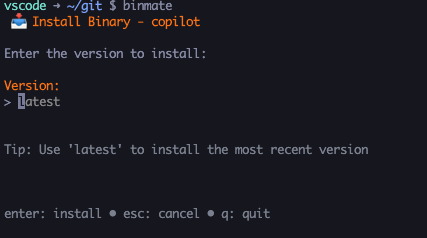
Provides an input for the version to be installed. Defaults to latest if not provided.
This view can also be reached via the available versions view, where the version input is automatically pre-populated.
Binary Version Installed
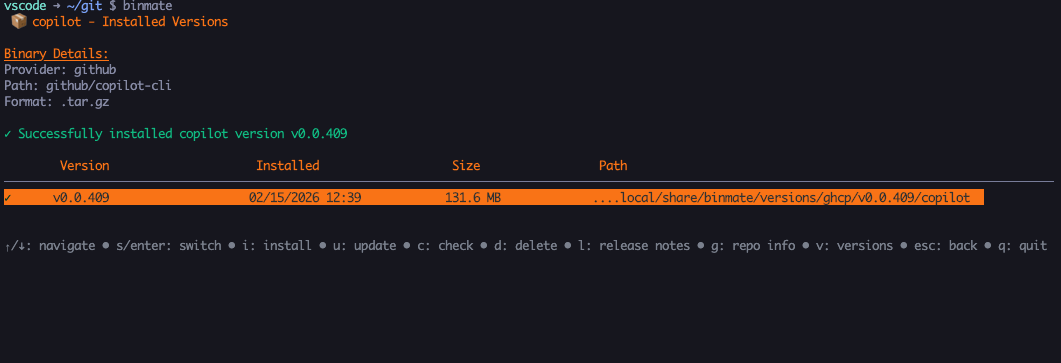
Confirmation of a successful version install.
Binary Version Update Available
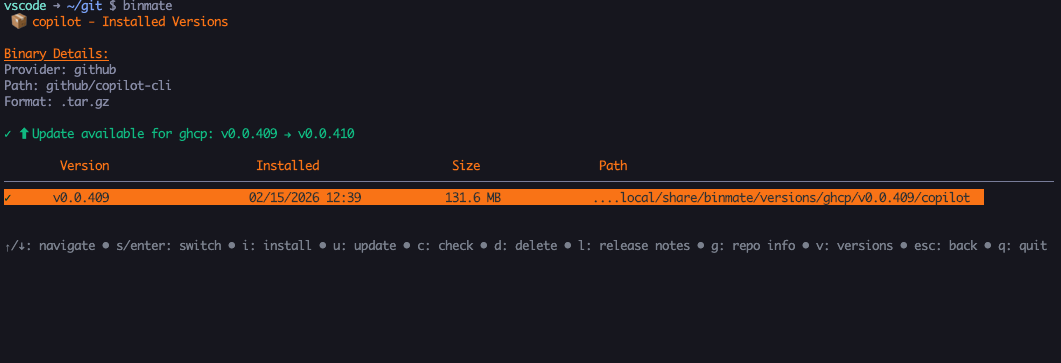
Display of the "update available" message following a check-for-update action.
Binary Version Update Installed
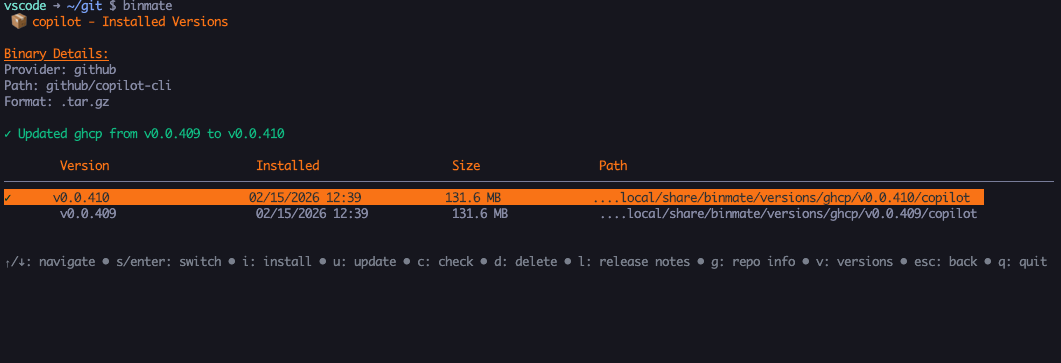
Confirmation prompt following a successful update operation.
Binary Installed Version Switch
Binary Available Versions View
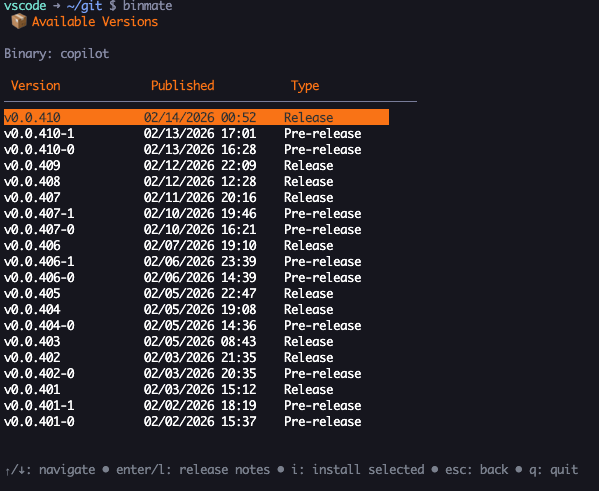
An overview of available versions for the chosen binary based on GitHub releases. Supports both pre-release and standard releases.
Provides the following actions:
- view release notes for the selected version
- install the selected version (jumps to the binary install view with a pre-populated version input)
Binary Release Notes View
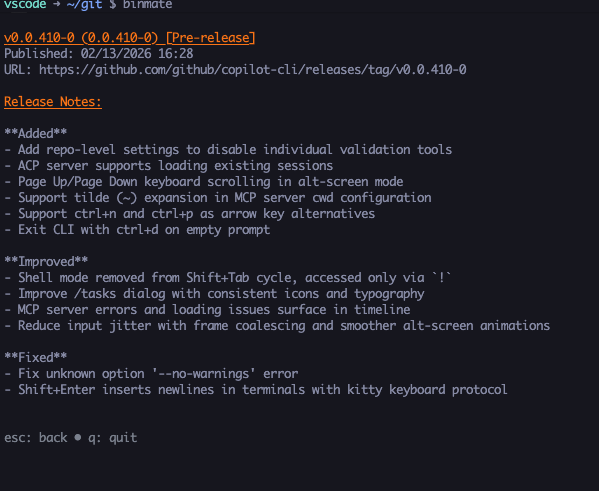
An overview of the selected release version. Available from the following locations:
- installed versions view
- available versions view
Binary Repository Info View
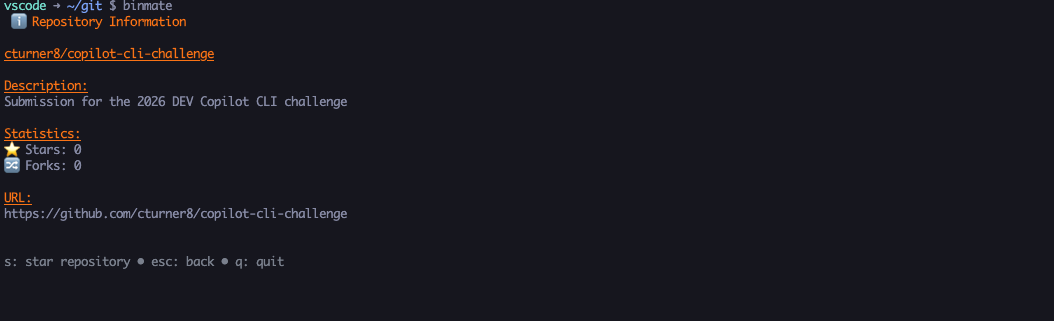
Provides an overview of the GitHub repository associated with a binary, including a star action.
Note
As starring is an authenticated operation, a GitHub token must be available in your terminal environment.
Binary Repository Star Action
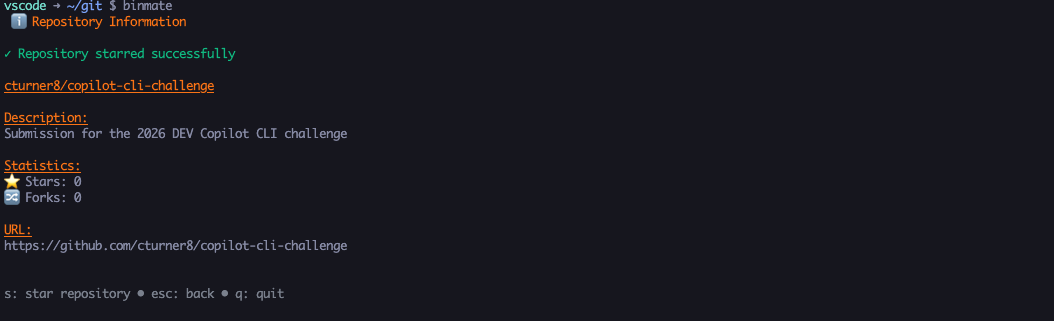
Feedback is provided for a successful star operation.
Note
Depending on your type of access token, this may not work on public repositories where you are not the owner.